Set up your organization
If you run a school, church, sports club, or community center, Boomeraang gives you a real lost & found system: scan found items into inventory, notify the right families automatically, and hand things back with a clear record.
1. Register your organization
- Sign up (or log in) and choose the Organization role.
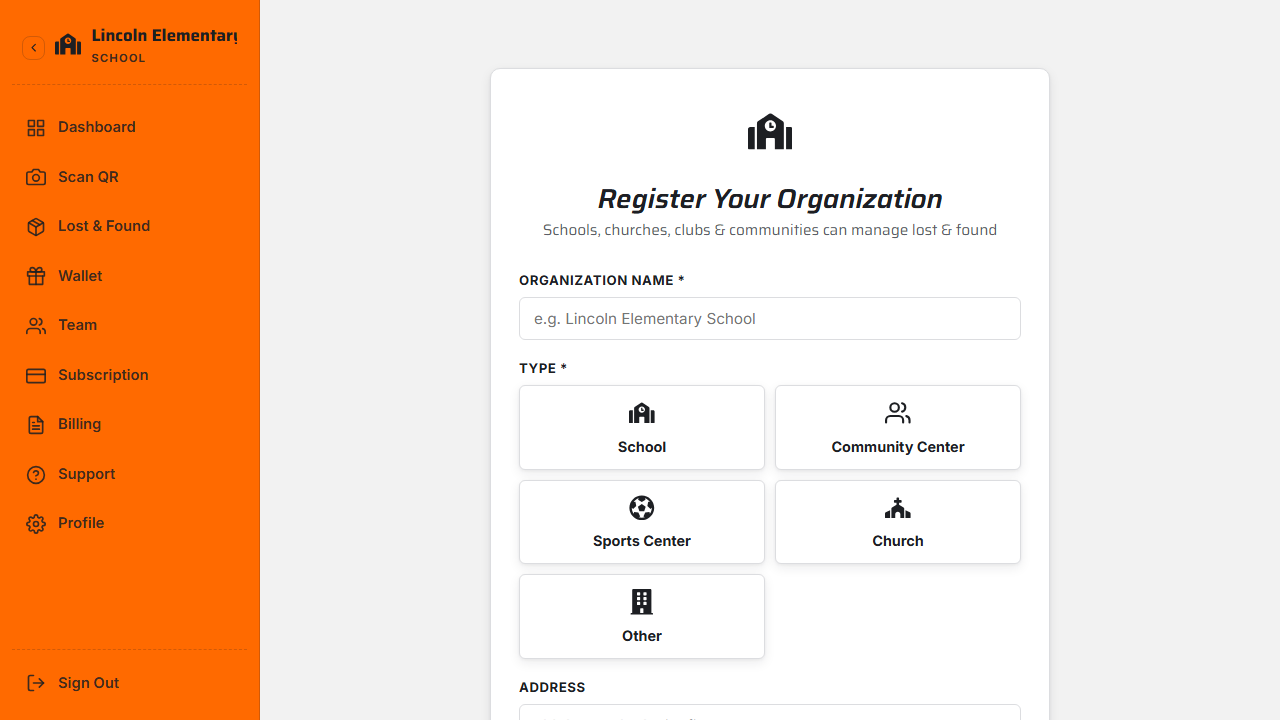
- On the registration screen, enter:
- Name and type (School, Community Center, Sports Center, Church, or Other)
- Address and contact email
- Optionally your email domain (used later to verify staff)
- Create the organization. You'll land on your dashboard.
2. Add branding
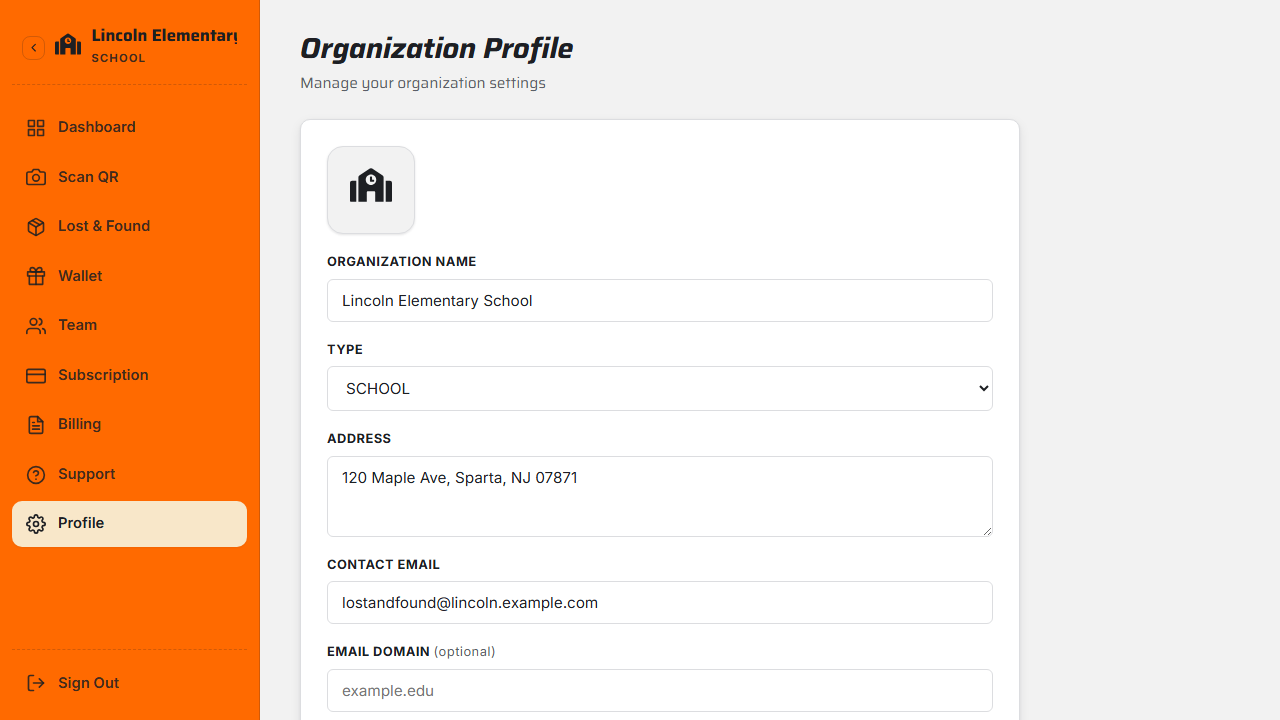
Go to Organization profile to upload and crop your logo. Your branding appears across the experience so families recognize your organization.
3. Configure key settings
On the profile screen you control how your lost & found behaves:
- Mark unclaimed after (days) — how long an item waits before it's flagged unclaimed (and eligible for resale). Default is 30 days.
- Allow child-info viewing — whether staff can see a linked child's name and grade when they scan a tag.
- Share lost & found with linked parents — whether linked parents can view your inventory in their app.
You can change these anytime
These settings aren't permanent. Adjust the unclaimed window or visibility toggles whenever your process changes.
What's next
Still stuck? Contact us — we're happy to help.