Invite & manage your team
Bring your colleagues into Boomeraang so more than one person can run the lost & found. Team members require an active Pro subscription (the primary admin is always included).
Invite a member
- Go to Team.
- Choose Invite member.
- Enter their email and pick a role — Staff or Manager.
- Send the invite. You can also copy the invite link to share directly.
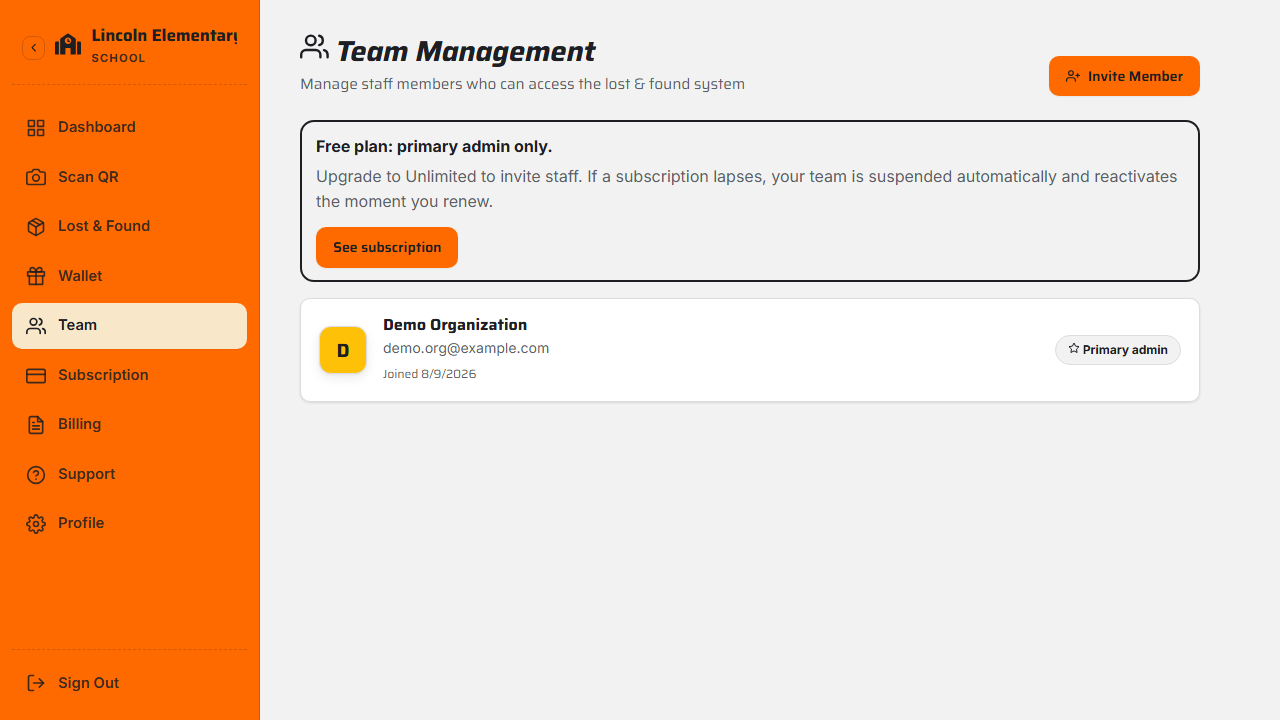
Each invite has an expiration date and appears under Pending invitations until it's accepted.
Accepting an invite
The person opens the invite link and sees a preview — your organization's name, who invited them, and their role. After signing in or creating an account, they're added to your team and land on the organization dashboard.

Manage members and invites
From the Team screen you can:
- Remove a team member (the primary admin can't be removed).
- Revoke a pending invitation that hasn't been accepted.
- See suspended members — these appear when a subscription lapses and reactivate automatically on renewal.
On the Free plan
Free organizations are primary-admin only. To invite staff or managers, upgrade to Pro — you'll see an upgrade prompt on the Team screen. See Org Free vs Pro & billing.
What's next
Still stuck? Contact us — we're happy to help.