Link your child to a school or organization
If your child's school, church, sports club, or community center uses Boomeraang, you can link your child to it. When staff scan a found item that belongs to your child, the system already knows how to reach you — so things come home faster.
1. Find the organization
- Go to Family, open your child, and choose Link organization (or Sharing).
- Search by the organization's name. You can filter by type — School, Community Center, Sports Center, Church, or Other — and by location.
- Select the right organization.
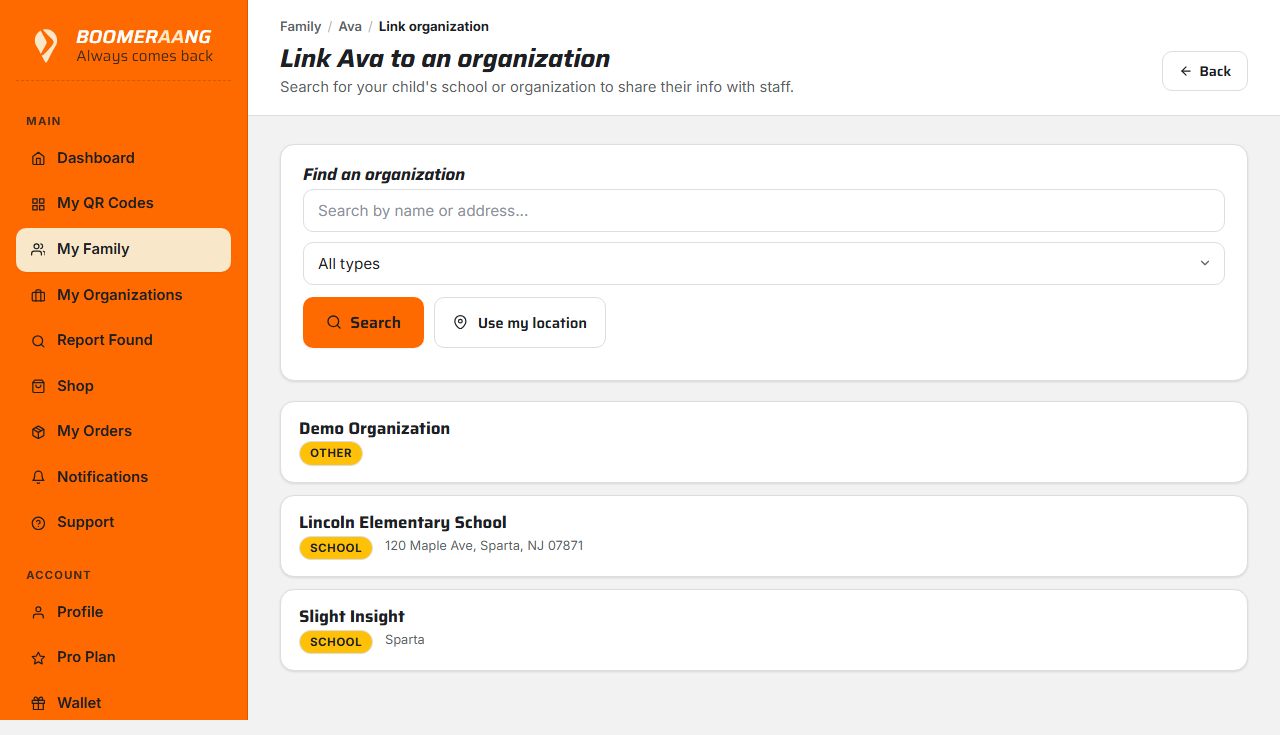
2. Set what you share
When you link, you choose the details that help staff match a found item to your child — typically their grade and teacher. You control this on the Sharing screen and can change it anytime.
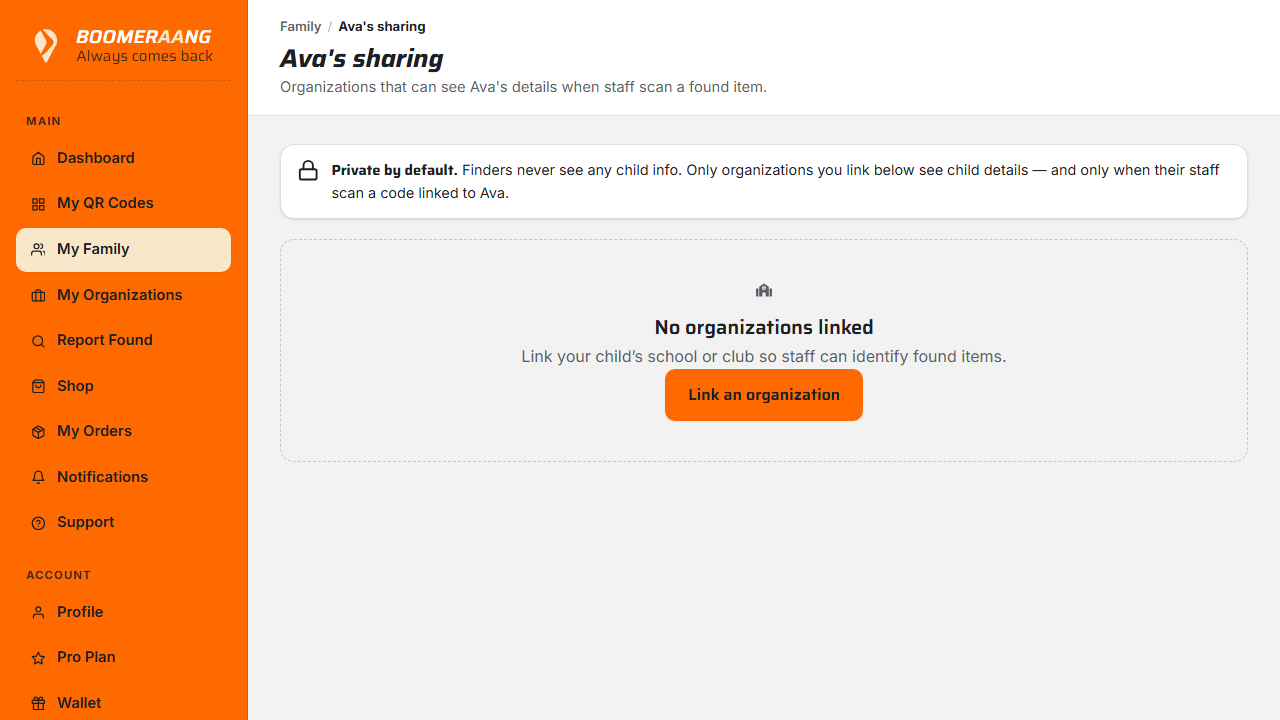
Your privacy stays protected
Linking shares only what you choose with verified staff at that organization — never with the general public. A stranger who scans a tag still never sees your child's name or your address. See When your tag is scanned.
What linking does (and doesn't) unlock
- Every member — free included — can search organizations, link their child, get notified when their tag is scanned, and browse and claim items from that organization's lost & found. No subscription needed.
- The organization has to switch it on. An admin enables Share lost & found inventory with linked parents in their organization profile. Until they do, you'll still get scan notifications, but there's no inventory to browse.
- You see the whole catalog, but not other families' details. Item descriptions, locations and dates are visible for every item so you can spot your own things. A child's name, grade and school are only ever shown on your own children's items.
What's next
Still stuck? Contact us — we're happy to help.